scroll

Setting Up an Account and Initial Configurations

Getting started with CODSPOT is straightforward! This guide will walk you through the steps to set up your account and configure the initial settings for optimal performance. By the end of this article, you'll be ready to harness the full potential of CODSPOT for your cash-on-delivery operations

Media
Step 1: Creating Your CODSPOT Account
  1. Visit the CODSPOT Website: Go to [CODSPOT's homepage](insert your website link).
  2. Click on "Sign Up": Locate and click the “Sign Up” button.
  3. Fill Out the Registration Form: Provide the required information, including your name, email address, and a secure password.
  4. Agree to Terms and Conditions: Review the terms and conditions, then check the box to agree.
  5. Submit Your Registration: Click the “Create Account” button to complete the registration process.
  6. Verify Your Email: Check your email for a verification link. Click the link to verify your account.


Step 2: Logging In

Return to the CODSPOT Homepage: Go back to the homepage.

Click on "Log In": Find and click the “Log In” button.

Enter Your Credentials: Input your email address and password.

Access Your Dashboard: Click “Log In” to access your CODSPOT dashboard.

Step 3: Initial Configuration

Once you are logged in, it’s time to configure your account settings for optimal use.

  1. Profile Setup:
    • Navigate to your profile settings by clicking on your profile icon in the top right corner.
    • Fill in any additional information required, such as your business name and contact details.
  2. Connect Your Store:
    • Go to the “Integrations” section in the dashboard.
    • Select Shopify, Lightfunnels, or any other platform you want to connect.
    • Follow the prompts to authenticate and link your store. Ensure all required permissions are granted.
  3. Configure Payment Methods:
    • In the settings menu, find the “Payment Methods” section.
    • Add and verify your payment methods to ensure smooth transaction processing.
  4. Set Up Shipping Preferences:
    • Head to the “Shipping” settings.
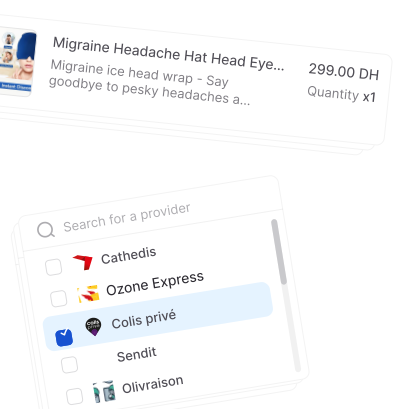
    • Choose your preferred shipping providers and set shipping rules that match your business model.
  5. Customize Notification Settings:
    • Navigate to the “Notifications” tab.
    • Configure how you would like to receive order tracking and status updates (e.g., via email or SMS)
Step 4: Explore Additional Features

Take a moment to explore other features available in your CODSPOT dashboard:

  • Team Management: Add team members and set their permissions.
  • API Access: For advanced users, access API keys for custom integrations.
Conclusion

Congratulations! You have successfully set up your CODSPOT account and completed the initial configurations. You are now ready to manage your cash-on-delivery operations efficiently. If you encounter any issues or have questions, don’t hesitate to reach out to our support team or refer to the Troubleshooting & FAQs section.

reffic
leffic
top
Your Partner in Efficiency and Savings.

Join us for Free today and experience the future of cash on delivery.

tabs
bottom